

What you need
- A mailbox you can open in the Mermail console.
- A few minutes to think about what “urgent” actually means for this mailbox. That is the real work here; typing the rule takes seconds.
Open the setting
Click the gear icon beside the mailbox name to open Settings, then scroll to Urgent email detection. The badge next to the section title tells you the current state at a glance: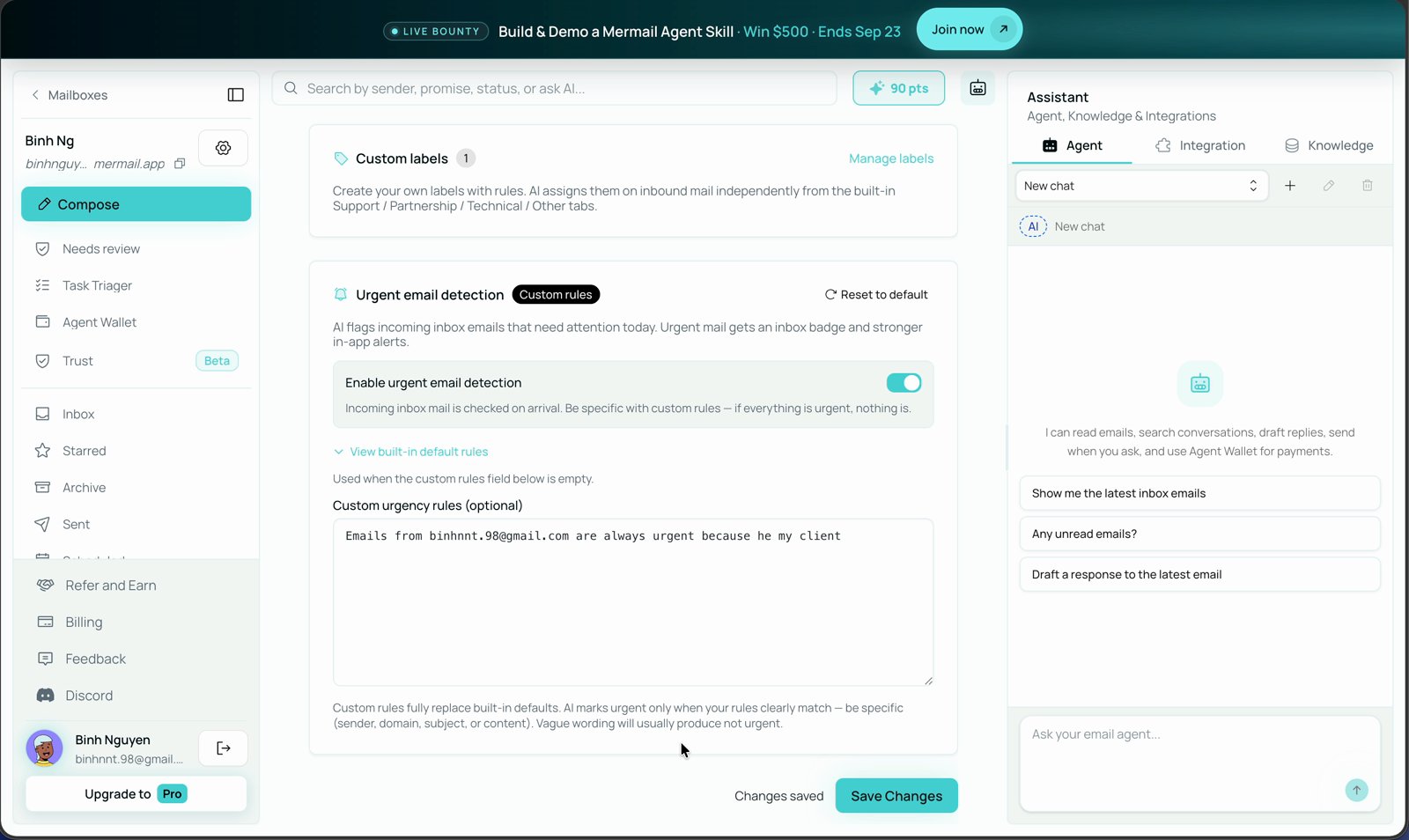
The Urgent email detection section, with a custom rule saved.
Start with the built-in rules
If you leave Custom urgency rules empty, Mermail applies its own definition. Click View built-in default rules to read them in full. In short, a message is marked urgent when it needs attention today — blocked customers, outages, payment failures, explicit deadlines, angry escalations, or time-sensitive requests from important contacts. Newsletters, FYI updates, marketing, routine notifications, “when you have a chance” requests, and automated reports are not urgent.Write your own rules
1
Make sure detection is on
Enable urgent email detection must be toggled on. While it is off, the rules field is disabled and nothing is ever marked urgent.
2
Write the rules
Type your rules into Custom urgency rules (optional), one rule per line. Say who or what is urgent, and be specific about the sender, domain, subject, or content that should match.You can combine several rules, and you can state exceptions:The field holds up to 2,000 characters.
3
Save
Click Save Changes. Changes saved appears beside the button and the badge at the top of the section switches to Custom rules. The next message that arrives is checked against your rules.
What happens when mail arrives
A message that matches your rules is flagged the moment it lands. In the inbox list it carries an Urgent badge alongside its other labels.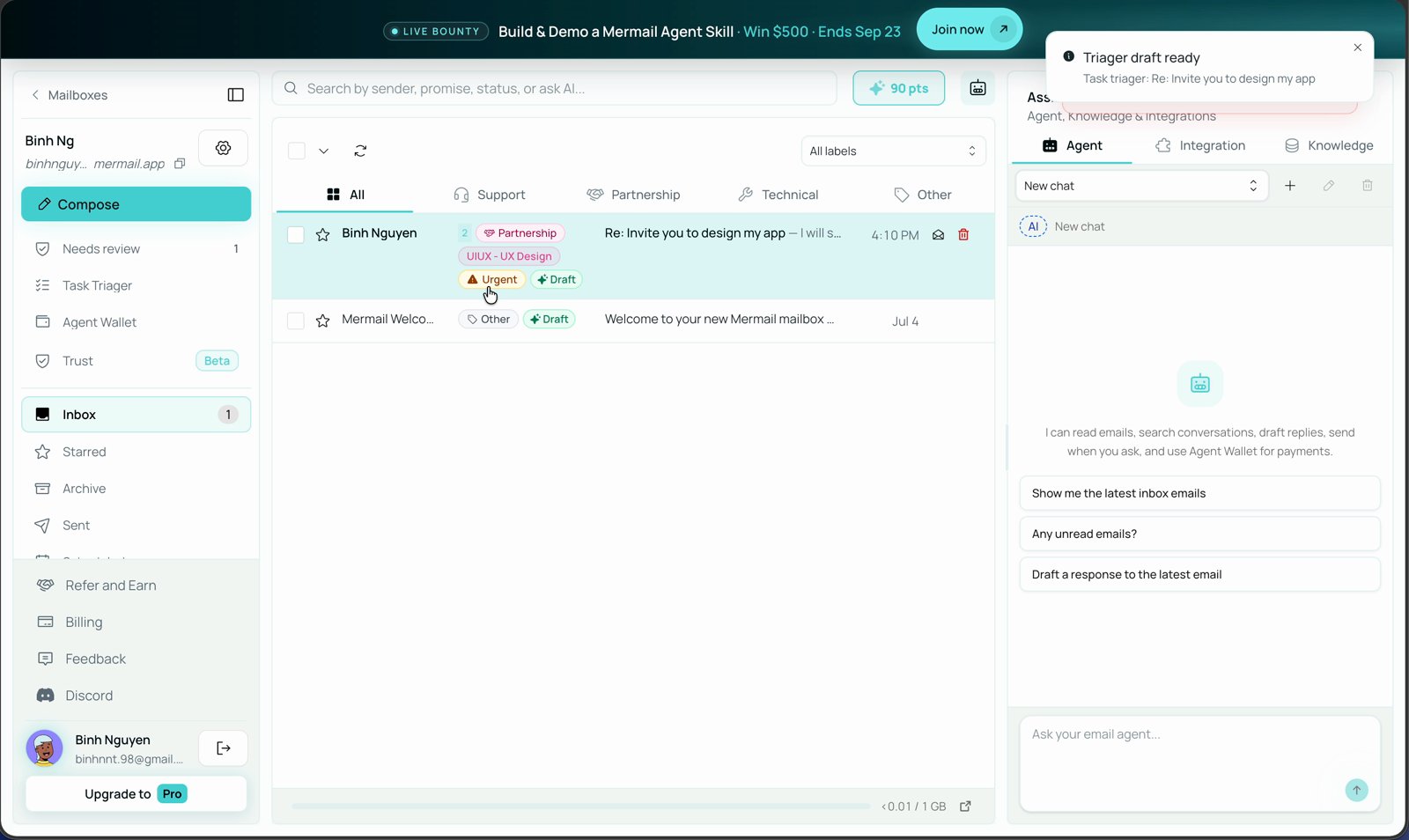
An incoming message from the sender named in the rule, flagged Urgent in the inbox list.
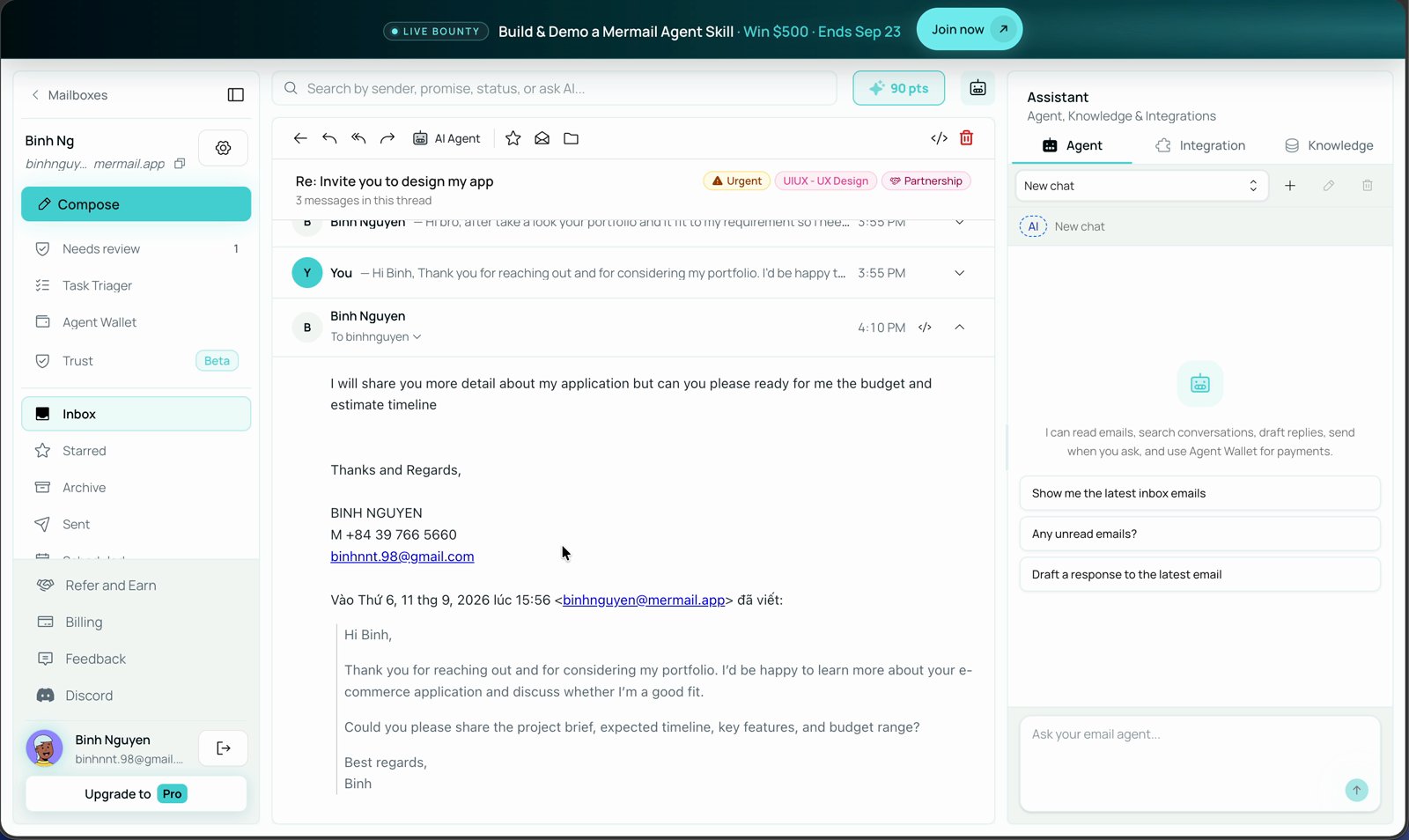
The Urgent badge follows the thread, so the flag is still visible while you read.
Only incoming Inbox mail is checked. Messages you send, and mail that never reaches the Inbox, are never marked urgent.
How Mermail decides
Knowing the decision rules makes it much easier to predict the result:- A rule that names a sender or domain applies only to that sender or domain. “Emails from
alice@acme.comare urgent” never makesbob@acme.comurgent. - No clear match means not urgent. Mermail does not stretch a rule to cover something similar.
- Ambiguity resolves to not urgent. Vague wording such as “important stuff is urgent” will mostly produce nothing at all.
- Your rules are the only criteria. With custom rules saved, Mermail deliberately ignores general email-triage instincts such as outages, deadlines, or angry tone unless you named them.
Write rules that work
- Name the thing that matches — a sender address, a domain, a subject phrase, or specific content — instead of describing a feeling.
- Say what is not urgent too. Exceptions are what keep the badge meaningful.
- Avoid “all”, “every”, and “always urgent” on their own. If your rules look like they will flag most of your mail, Mermail asks you to confirm before saving, because badges and alerts stop being useful when everything carries them.
- Review after a week. If nothing was flagged, your rules are probably too narrow or too vague. If everything was flagged, they are too broad.
Turn it off or start over
- Reset to default appears in the section header once you have custom rules. It clears the rules field and puts the mailbox back on the built-in defaults. Save afterwards to apply it.
- Toggle off stops detection entirely. No message is marked urgent, no badges appear, and no urgent alerts are sent. Your saved rules are kept, so you can switch it back on later.
Related
Task triager
Run your own instructions automatically when a calendar event or email arrives.
Mailbox agent
How the agent uses mailbox context, conversations, and connected tools.