> ## Documentation Index
> Fetch the complete documentation index at: https://docs.mermail.app/llms.txt
> Use this file to discover all available pages before exploring further.
# Custom labels
> Define your own labels with rules, and let AI tag inbound mail with them automatically.
Mermail already sorts inbound mail into the built-in **Support**, **Partnership**, **Technical**, and **Other** tabs. Custom labels sit alongside those: you define the label, you write the rule that decides when it applies, and every new message is checked against it on arrival.
This guide builds one label end to end — **UIUX - UX Design**, for design requests — and shows it landing on a real message.
## What you need
* A mailbox you can open in the [Mermail console](https://console.mermail.app).
* A clear idea of what separates the mail you want labeled from the mail you don't. The rule is the whole feature; the label is just a name and a color.
## Open the Custom labels page
Click the gear icon beside the mailbox name to open **Settings**, scroll to **Custom labels**, and click **Manage labels**.
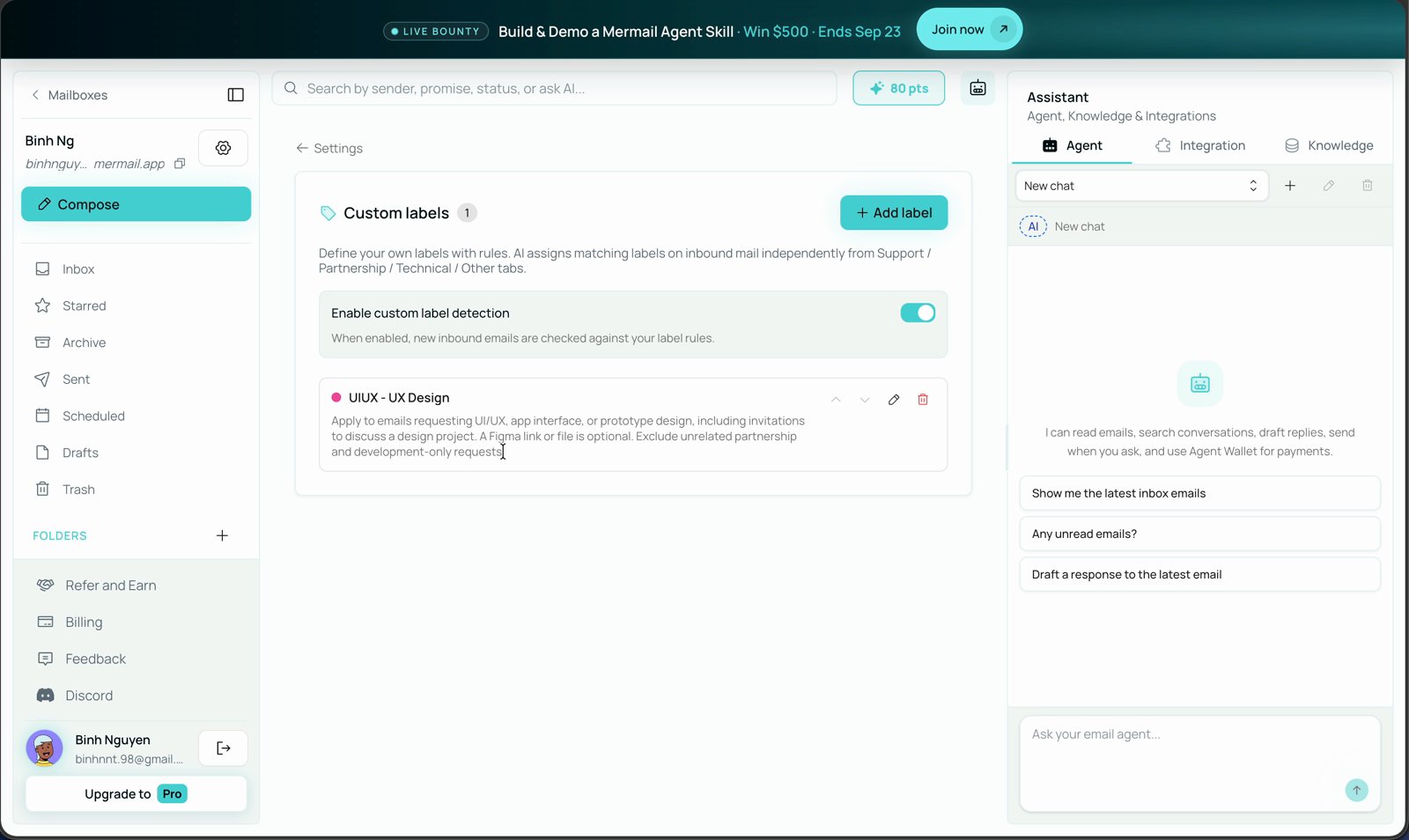
The page lists every label on the mailbox, with its color, its name, and the rule the AI follows.
 ## Create a label
A short editor opens below the list with three fields: **Name**, **Rules**, and **Color**. Name and rules are both required.
Use the name you want to see on the message itself, such as `UIUX - UX Design`. Keep it short — it appears as a chip next to every other label on the email.
This is the part that matters. Describe what the email has to be about for the label to apply, and say what to leave out.
```text theme={null}
Apply to emails requesting UI/UX, app interface, or prototype design,
including invitations to discuss a design project. A Figma link or file
is optional. Exclude unrelated partnership and development-only requests.
```
Notice the shape of it: what counts, what is optional, and what is explicitly excluded. The exclusion line is what stops a label from spreading to everything nearby.
Rules can be up to 500 characters. Mermail warns you while you type if the rules look broad enough to catch most of your mail — for example wording like "all emails".
Choose one of the preset swatches. The color is how you spot the label at a glance in a crowded list, so give related labels different colors.
Click **Save label**. A confirmation appears and the label joins the list. A mailbox can hold up to 20 custom labels.
## Turn detection on
**Enable custom label detection** sits above the list. While it is on, every new inbound email is checked against your label rules as it arrives. The toggle stays disabled until the mailbox has at least one label, so create a label first.
Only inbound mail is checked, and only as it arrives. Turning detection on does not go back and label messages you already received.
## See it work
When a matching message arrives, the label appears on it in the inbox list, next to the built-in category and any other labels the message picked up.
## Create a label
A short editor opens below the list with three fields: **Name**, **Rules**, and **Color**. Name and rules are both required.
Use the name you want to see on the message itself, such as `UIUX - UX Design`. Keep it short — it appears as a chip next to every other label on the email.
This is the part that matters. Describe what the email has to be about for the label to apply, and say what to leave out.
```text theme={null}
Apply to emails requesting UI/UX, app interface, or prototype design,
including invitations to discuss a design project. A Figma link or file
is optional. Exclude unrelated partnership and development-only requests.
```
Notice the shape of it: what counts, what is optional, and what is explicitly excluded. The exclusion line is what stops a label from spreading to everything nearby.
Rules can be up to 500 characters. Mermail warns you while you type if the rules look broad enough to catch most of your mail — for example wording like "all emails".
Choose one of the preset swatches. The color is how you spot the label at a glance in a crowded list, so give related labels different colors.
Click **Save label**. A confirmation appears and the label joins the list. A mailbox can hold up to 20 custom labels.
## Turn detection on
**Enable custom label detection** sits above the list. While it is on, every new inbound email is checked against your label rules as it arrives. The toggle stays disabled until the mailbox has at least one label, so create a label first.
Only inbound mail is checked, and only as it arrives. Turning detection on does not go back and label messages you already received.
## See it work
When a matching message arrives, the label appears on it in the inbox list, next to the built-in category and any other labels the message picked up.
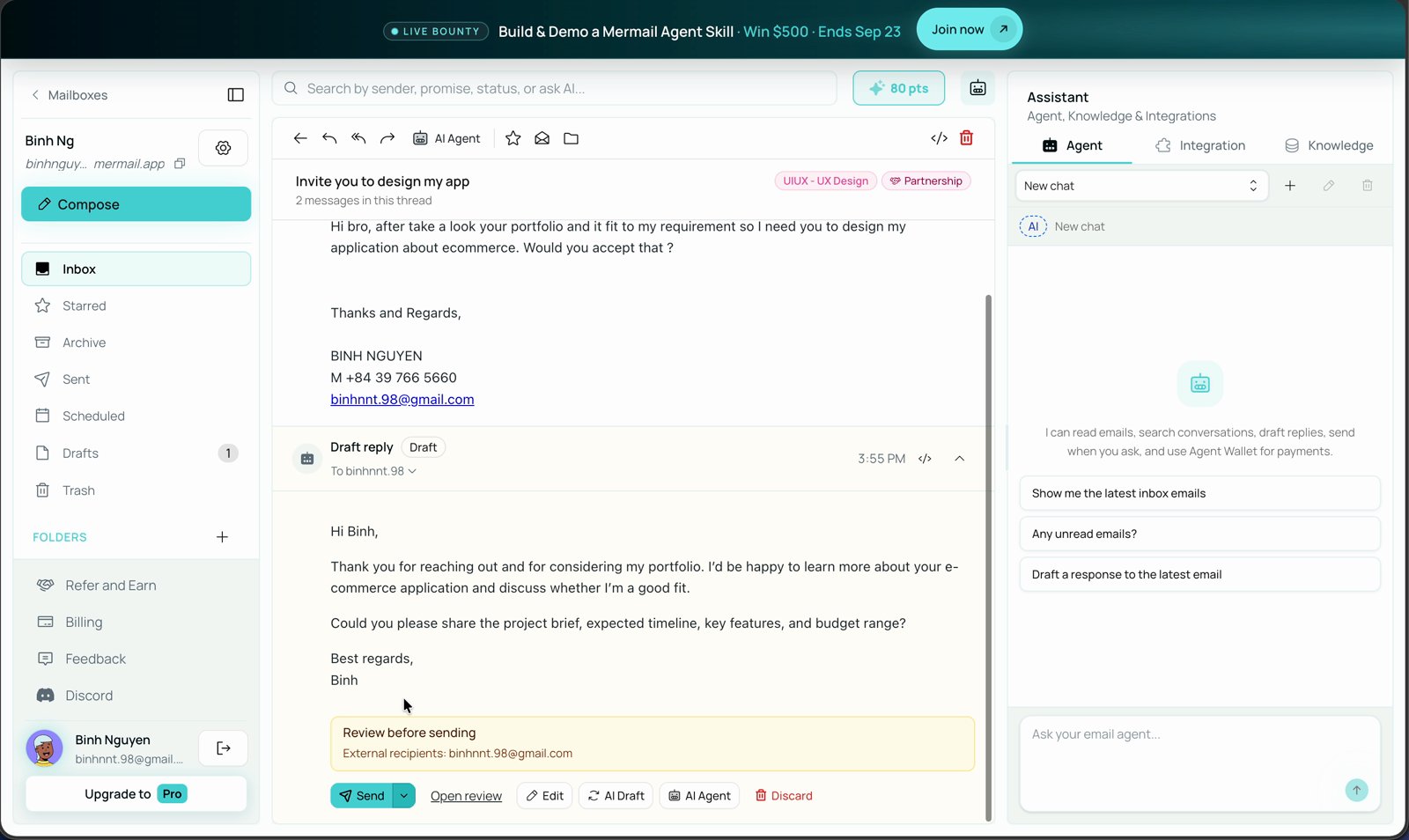
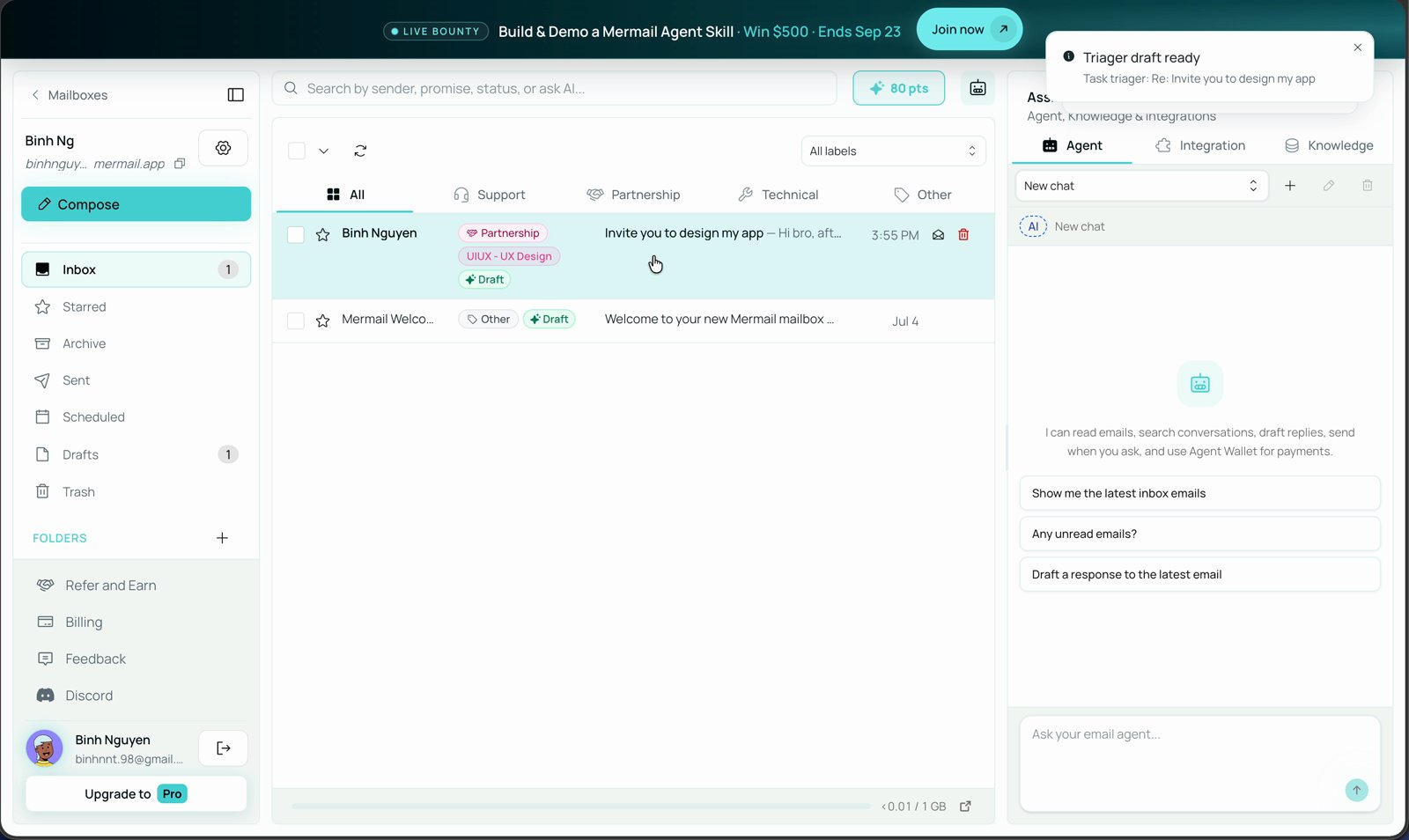 Open the message and the labels stay with the thread, in the header beside the subject.
 To see only the mail carrying a given label, use the **All labels** dropdown above the message list and pick the label.
## How Mermail decides
* **Every matching label is applied.** One email can carry several custom labels at once if more than one rule clearly matches.
* **No match means no label.** Mermail does not apply the closest label; it applies nothing.
* **Your rules are the only criteria.** The AI deliberately ignores category and urgency instincts here — a label lands only when its own rule matches.
* **Custom labels are independent of the built-in tabs.** A message labeled `UIUX - UX Design` can still sit under **Partnership**, as in the example above.
## Manage your labels
| To do this | Do that |
| --------------------------------------- | --------------------------------------------------------------------------------------------------------- |
| Change a name, rule, or color | Click the pencil icon on the label row. |
| Reorder the list | Use the up and down arrows on the row. |
| Delete a label | Click the trash icon and confirm. This also removes the label from every email that currently carries it. |
| Stop labeling without deleting anything | Turn **Enable custom label detection** off. |
## Write rules that work
* **Describe the request, not the sender**, unless the sender really is the rule. "Emails from `@vc.com`" is a fine rule; "important design stuff" is not.
* **Name what is optional.** Saying a Figma link is optional stops the AI from treating it as required.
* **Always add an exclusion.** One line of "exclude X" does more for precision than three lines of description.
* **Avoid "all", "every", and "any email".** Mermail flags this wording because a label on everything is a label on nothing.
* **Check after a few days.** No matches usually means the rule is too vague; matches everywhere means it is too broad.
## Related
Decide, in your own words, which incoming mail counts as urgent.
Run your own instructions automatically when a calendar event or email arrives.
To see only the mail carrying a given label, use the **All labels** dropdown above the message list and pick the label.
## How Mermail decides
* **Every matching label is applied.** One email can carry several custom labels at once if more than one rule clearly matches.
* **No match means no label.** Mermail does not apply the closest label; it applies nothing.
* **Your rules are the only criteria.** The AI deliberately ignores category and urgency instincts here — a label lands only when its own rule matches.
* **Custom labels are independent of the built-in tabs.** A message labeled `UIUX - UX Design` can still sit under **Partnership**, as in the example above.
## Manage your labels
| To do this | Do that |
| --------------------------------------- | --------------------------------------------------------------------------------------------------------- |
| Change a name, rule, or color | Click the pencil icon on the label row. |
| Reorder the list | Use the up and down arrows on the row. |
| Delete a label | Click the trash icon and confirm. This also removes the label from every email that currently carries it. |
| Stop labeling without deleting anything | Turn **Enable custom label detection** off. |
## Write rules that work
* **Describe the request, not the sender**, unless the sender really is the rule. "Emails from `@vc.com`" is a fine rule; "important design stuff" is not.
* **Name what is optional.** Saying a Figma link is optional stops the AI from treating it as required.
* **Always add an exclusion.** One line of "exclude X" does more for precision than three lines of description.
* **Avoid "all", "every", and "any email".** Mermail flags this wording because a label on everything is a label on nothing.
* **Check after a few days.** No matches usually means the rule is too vague; matches everywhere means it is too broad.
## Related
Decide, in your own words, which incoming mail counts as urgent.
Run your own instructions automatically when a calendar event or email arrives.